Guide
How to Track Cross Stitch Progress in Your Browser
The short answer
To track cross stitch progress in your browser, open your chart in a stitch tracker, mark finished stitches, rows or areas as you work, and filter by one colour at a time to see only its symbols. Progress saves automatically on your device, so download a backup file regularly because it is not stored in the cloud.
Keeping your place on a chart is half the work of cross stitch. Paper charts get covered in highlighter, pencil marks smudge, and after a few weeks it’s hard to see what’s done. A digital tracker solves this, as long as you understand where your progress is stored and how to keep it safe.
Opening a chart in the tracker
Any chart on this site can be tracked:
- From a library pattern, press Start stitching.
- From the photo converter or text generator, press Start stitching after creating the chart.
- From the Studio, press Start stitching in the top bar.
- From My projects, press Track on any saved project.
The chart opens with your progress bar at the top: the percentage done and the exact number of stitches finished out of the total.
How the percentage is calculated
Progress = completed stitches ÷ all stitches in the chart
Empty (no-stitch) squares are never counted, and marking a square twice doesn’t count twice, so the figure always stays between 0% and 100%. Each colour also has its own progress shown in the side panel (for example “312/540”).
Three ways to mark
- Stitch: tap one square to mark it done; tap again to unmark it.
- Row: tap anywhere in a row to mark the whole row. If the row is already done, tapping unmarks it.
- Area: drag a rectangle to mark everything inside. Great for finishing a block of one colour.
Finished squares get a darker tint and a check mark, so they’re easy to tell apart from what’s left. Made a mistake? Undo reverses the last change (up to 100 steps).
Stitch one colour at a time
Most stitchers work one colour across an area before switching. Select a colour in the side panel and the tracker:
- dims every other colour so that colour’s symbols stand out,
- limits marking to that colour, so dragging an area won’t accidentally mark neighbouring colours,
- shows that colour’s own progress.
Choose “All colours” to return to the full view.
Focus mode
Focus mode hides the site navigation and gives the chart the whole screen: calmer for long sessions on a tablet propped next to your hoop. There are no ads in the tracker or in focus mode. Pinch to zoom on touch screens, or use the + and − buttons.
Keyboard tracking
On a computer, click the chart and use the arrow keys to move a blue cursor. Space marks the square under the cursor, R marks its row and Ctrl+Z undoes. The current square’s colour and status are announced to screen readers.
Where your progress is saved
Progress is saved in this browser, on this device, using the browser’s built-in storage (IndexedDB). It saves automatically after each change; the indicator only shows Saved on this device after the browser confirms the write. If saving fails (for example storage is full or blocked), it says so and offers a backup download straight away.
This has consequences worth knowing:
- It is not a cloud backup and not synced between devices.
- Clearing site data or browsing history for this site deletes it.
- Private/incognito windows usually lose storage when closed.
Moving to another device
Download the project file (JSON) from the tracker, Studio or My projects. It contains the chart and your progress. On the other device, open My projects → Import project file. The import is validated and added as a new project; it never overwrites an existing one.
What happens if the chart changes
If you edit a pattern in the Studio after you’ve started tracking, and the edit changes which squares are stitched, the Studio asks you to choose: edit a copy (your original and its progress stay untouched) or restart progress for the edited version. Old progress is never laid over a changed chart, because it could mark the wrong stitches as done. Colour-only changes, such as renaming or recolouring a thread, keep your progress.
Tips for a smooth routine
- Back up weekly, or after a big session.
- Use colour focus for confetti-heavy areas; it makes single symbols easy to spot.
- Mark rows as you finish them rather than at the end of the evening.
- Keep a printed overview page beside you for the big picture.
Ready to try? Open the Little Heart pattern and choose Start stitching. It takes ten seconds to see how it works.
A simple tracking routine
Before a session
- Open the project from My projects and choose the colour you plan to stitch.
- Zoom so the area you are working on fills the screen.
While stitching
- Mark rows (Row mode) as you finish them; it is quicker than marking single stitches.
- For a block of one colour, use Area mode with the colour selected so only that colour is marked.
- If you mark something by mistake, tap Undo.
After a session
- Check the percentage and per-colour counts; colours near completion are a good sign to buy more of that thread if needed.
- Every week or so, download a backup of the project file.
Tablet tips
- Use focus mode to hide the navigation and give the chart the whole screen.
- Pinch to zoom; drag with two fingers to move around.
- Lock screen rotation so the chart doesn’t flip while you work.
- Keep the device a comfortable distance away and use the Symbols view if colours are hard to tell apart in your light.
What the numbers mean
| Display | Meaning |
|---|---|
| Overall percentage | Finished stitches ÷ all stitches (empty squares ignored) |
| 312/540 next to a colour | 312 of that colour’s 540 stitches are marked |
| Saved on this device | The last change was written to browser storage |
| Save failed | Storage is full or blocked; download a backup |
Remember that the tracker records what you mark, not what you stitch: it is a memory aid, so mark as you go.
Tracking routines that work
- Mark as you go, not at the end of a session. Marking a row as you finish it takes a second; reconstructing an evening’s work from memory takes much longer and invites mistakes.
- Use colour focus for big areas. Filtering to one colour shows exactly which squares still need that thread, which is the fastest way to finish a background.
- Use area mode for blocks. When you complete a rectangle of one colour, mark it in one drag instead of square by square.
- Keep the chart and the tracker in the same orientation as your fabric. If you turn your hoop, turn your mental map, not the chart.
Keeping your progress safe
Progress is stored in this browser on this device only. To protect a long project:
- Download a project file every week or so from the Studio’s Export dialog. It contains the chart and your progress.
- Avoid private or incognito windows for tracking; they delete storage when you close them.
- Moving to a new device? Import the project file on the new device. Progress comes with it as long as the chart hasn’t changed.
- Clearing browsing data for this site removes saved projects, so back up first.
If you edit the chart’s structure later, the tracker asks whether to edit a copy or restart progress. That protects you from progress that no longer matches the squares.
Questions stitchers ask
Will I lose my progress if I close the browser?
No. Progress is saved in the browser’s storage on this device and is still there when you return, unless you clear site data or used a private window that discards storage.
Can I track on my phone and my laptop?
Not automatically. Download the project file on one device and import it on the other. There is no account or cloud sync.
How do I mark a whole colour at once?
Select the colour in the side panel, switch to Area mode and drag over the region. Only stitches of the selected colour are marked.
What if I mark the wrong stitches?
Use Undo (up to 100 steps), or tap the same stitch, row or area again to unmark it.
Try it now
Everything in this guide works in the free cross stitch pattern maker, right in your browser, with no account.
Open the stitch tracker →A pattern to practise with
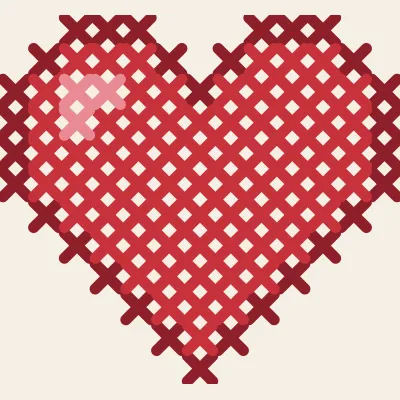
Little Heart
A 13×12 heart in three reds with a small highlight.